The Software Landscape
Before looking at the OS itself, it helps to understand where it sits in the broader software ecosystem. All software on a computer can be divided into two broad categories: application software and system software.
Application software consists of programs that perform tasks specific to a particular use: a word processor, a spreadsheet, a game, a photo editor, a browser. Application software is what most people think of when they think of "programs."
System software performs tasks that are common to computer systems in general — the infrastructure that application software depends on. Within system software, there are two sub-categories: the operating system itself, and utility software — programs that extend or support the OS but are not technically part of it. Some examples of utility software consist of the "Finder" on MacOS or "Windows Explorer" to discover files, the "Start Menu" to launch programs, and even the task manager to view running applications. System software is what comes bundled with your operation and is necessary for the basic functionality of the computer's usage.
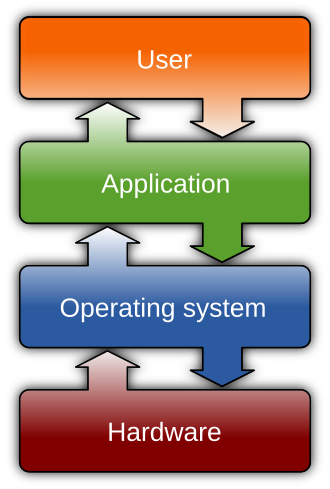
Two Layers: User Interface and Kernel
A modern operating system has two main layers. The outer layer — what users interact with — is the user interface. The inner layer — where the real work happens — is the kernel.
This separation matters because it means the kernel can be the same across many different interface styles. A user accustomed to clicking icons and windows and a user who prefers typing commands are both talking to the same underlying kernel — just through different user interfaces.
The User Interface Layer
The Shell
When humans interact with an operating system, they do so through a connection referred to as the shell. The original shell was a text-based environment in which the user communicates with the OS by typing commands. The user types an instruction, the OS responds with text. This type of interaction still exists in modern systems because they remain powerful tools for advanced users and system administrators. If you have ever opened a Terminal on a Mac, or a Command Prompt or PowerShell window on Windows, you have used this type of shell. The commands look cryptic at first, but they are simply a direct, text-based way of talking to the OS.
Most people today interact with operating systems through a graphical user interface (GUI) — pronounced "GOO-ee." In a GUI, files, programs, and other objects are represented as icons on a screen. Users issue commands by clicking, dragging, tapping, or gesturing rather than typing.
The GUI is not the OS. It is the OS's face — the layer that makes the kernel approachable for non-technical users. Some operating systems allow users to choose among several different GUI shells, which is why a Linux user can choose between interfaces that look nothing like each other while still running the same underlying system.
The Window Manager
Within a GUI, the window manager is responsible for allocating space on the screen and keeping track of which window belongs to which application. When a program wants to display something, it notifies the window manager, which places the display in the program's assigned window. When you click on the screen, it is the window manager that determines which application received that click. The visual "style" of a GUI — how windows look, how they snap and resize — is largely determined by the window manager.
It is easy to see the term "Window Manager" and assume it only applies to desktop computers like Microsoft Windows or macOS. However, in this context, the term is used much more broadly. The Window Manager is the part of the OS that decides where and how an app’s interface appears on your screen. Whether it is a traditional overlapping window on a laptop, or a single "full-screen" app on an Android or iOS device, the Window Manager is the invisible hand behind the scenes. It handles the "signage" and "visibility" of your apps, ensuring that the right content is in front of the user's eyes at the right time.
The Kernel
The kernel is the core of the operating system — the part that performs the fundamental functions required by the machine. While the user interface is the OS's face, the kernel is its brain and hands. Users rarely interact with the kernel directly; application software makes requests to the kernel constantly.
The kernel contains several major components, each responsible for a specific aspect of managing the machine's resources.
The File Manager
The file manager coordinates the use of the machine's mass storage. It maintains records of every file stored on the system: where each file is located, which users are permitted to access it, and which portions of storage are available for new files. When any software wants to read or write a file, it must request permission from the file manager, which then provides the information needed to find and access the file.
To help users organize files, most file managers support grouping files into
directories (also called folders). Directories can
contain other directories, creating a hierarchical structure. The location of a file
within that hierarchy is described by its directory path — a
chain of directory names separated by slashes, such as
C:/Users/jsmith/Documents/SchoolYear/LessonPlans.
Device Drivers
The kernel contains a collection of device drivers: software units that communicate with the controllers of peripheral devices. Each device driver is specifically designed for one type of device — a printer, a keyboard, a disk drive, a graphics card. The driver translates generic requests from the rest of the OS into the specific technical steps required by that device.
Device drivers are the reason the OS can work with a wide variety of hardware without being redesigned for each new device. When you install a new printer or plug in an unfamiliar USB device, the OS searches for — and if necessary downloads — the appropriate driver. This connects directly back to the controllers and ports covered in Topic 2d: the controller handles the hardware side of communication; the device driver handles the software side.
The Memory Manager
The memory manager coordinates the machine's use of main memory (RAM). In a multitasking environment, many programs and blocks of data must reside in RAM at the same time. The memory manager assigns each program its own region of memory, ensures that programs cannot accidentally (or maliciously) access each other's memory space, and reclaims memory when programs finish or are closed.
When the total memory required by running programs exceeds the amount of RAM available, the memory manager uses a technique called paging: shuffling portions of memory (called pages) back and forth between RAM and mass storage to create the illusion of more RAM than actually exists. This larger "fictional" memory space is called virtual memory. If you have ever noticed your computer slowing down significantly when many programs are open, you have likely experienced the performance cost of heavy paging.
The Scheduler and Dispatcher
In a multiprogramming system, the kernel must decide which programs get to use the CPU and for how long. Two components work together to manage this:
- The scheduler determines which activities (jobs, processes) are to be considered for execution and in what order. It applies whatever priority rules the OS uses to maintain a queue of programs waiting for CPU time.
- The dispatcher controls the actual allocation of CPU time to those activities. When it is time for a program to run, the dispatcher gives it the CPU. When the program's time slice is up, the dispatcher takes the CPU away and hands it to the next program in the queue.
The scheduler decides who gets to run. The dispatcher decides when and makes it happen. Together they are the machinery behind multitasking. We will examine how they work in much more detail in Topic 3b.
Putting It Together
Every time you use a computer, all of these components are working in coordination. When you double-click a file:
- The graphical user interface detects the click and translates the click into a request to open the file.
- The file manager locates the file on mass storage and verifies that you have permission to open it.
- The memory manager allocates RAM for the program that will open the file.
- The appropriate device driver coordinates with the storage controller to load the file into RAM.
- The scheduler and dispatcher give CPU time to the program so it can run.
- The window manager places the program in a window on the screen so that it can be moved, minimized, maximized or closed.
All of that happens in the fraction of a second between your click and the file appearing on screen. The operating system's job is to make that coordination invisible.
Reading 3 looks at one more piece of the OS story: how all of this gets started in the first place when the computer is turned on.