A Chicken-and-Egg Problem
Reading 2 described what an operating system does: it manages files, memory, devices, and processes. But there is a puzzle lurking in that description. The OS is a program. Programs need to be loaded into RAM before the CPU can run them. But loading programs into RAM is something the OS does. So how does the OS itself get loaded?
This is a genuine chicken-and-egg problem, and solving it requires a piece of hardware you encountered in Week 2: read-only memory (ROM).
Read-Only Memory (ROM)
Recall from Topic 2b that RAM is volatile — it loses its contents the moment power is removed. Every time you turn on a computer, RAM starts empty. The CPU needs a program to execute, but there is nothing in RAM yet. This is the problem ROM solves.
Read-only memory (ROM) is a small region of non-volatile memory built into the computer's hardware. Its contents are permanent — they survive power cycles. The CPU is designed so that when it starts up, its program counter points to a specific address in ROM. Whatever program is stored there is the first thing the CPU executes after power is applied.
ROM cannot hold the entire operating system — it is far too small for that, and keeping a large OS in ROM would make updates difficult. Instead, ROM holds something much smaller: a program whose only job is to find and load the operating system. This program is called the boot loader.
The Boot Loader and the Booting Process
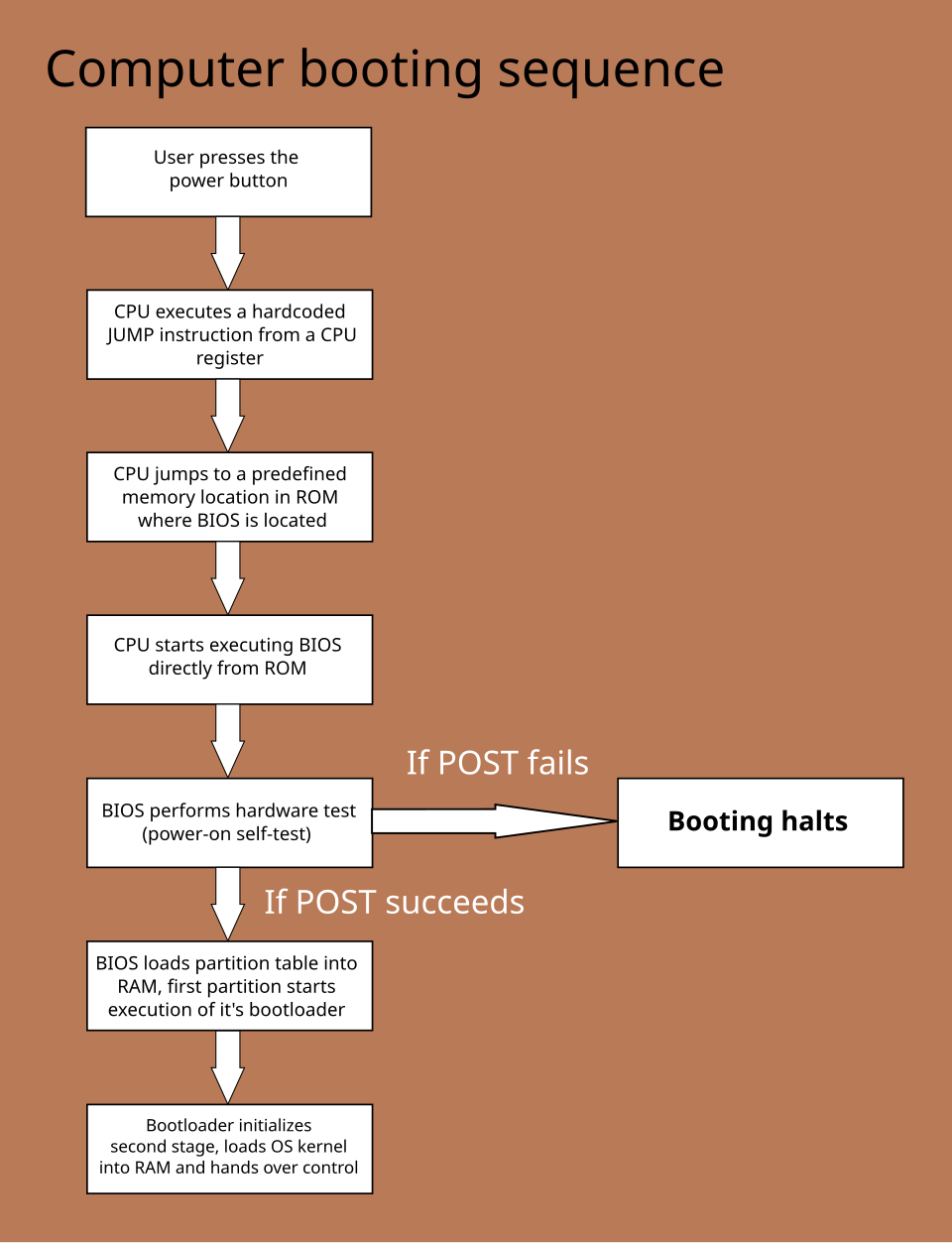
When you press the power button on a computer, the following sequence unfolds:
| Step | What Happens |
|---|---|
| 1. Power on | The CPU starts up with its program counter pointing to the boot loader address in ROM. RAM is empty. |
| 2. Boot loader runs | The CPU executes the boot loader from ROM. The boot loader knows where the operating system is stored on mass storage (the hard drive or SSD). |
| 3. OS is loaded | The boot loader directs the CPU to copy the operating system from mass storage into RAM. |
| 4. OS takes control | The boot loader executes a jump instruction to the OS's location in RAM. The operating system begins running and takes over control of the machine. |
| 5. System ready | The OS initializes its components — file manager, memory manager, device drivers, user interface — and presents the user with a login screen or desktop. |
The overall process of executing the boot loader and starting the operating system is called booting the computer (short for "bootstrapping" — a reference to the old phrase "pulling yourself up by your own bootstraps"). When something goes wrong early in this process and the machine fails to start, the error is often called a boot failure.
Why not store the whole OS in ROM? Two reasons. First, ROM in general-purpose computers is small — a modern OS is gigabytes in size, far too large for ROM. Second, operating systems need to be updated regularly for security patches, bug fixes, and new hardware support. Storing the OS in ROM would make updates slow and difficult. Mass storage is the practical solution: the OS lives on the hard drive or SSD, where it can be easily updated, and the boot loader's job is simply to find and load it each time the machine starts.
Firmware: Between Hardware and Software
In addition to the boot loader, a computer's ROM typically contains a collection of basic software routines for performing fundamental input/output operations — communicating with the keyboard, displaying messages on screen, and reading from mass storage. This software lives in a middle ground between pure hardware and the fully updatable software of the OS.
The term firmware was coined to describe this middle ground: more permanent than ordinary software, but not as fixed as the hardware itself. On modern PCs, firmware is typically stored in flash memory (which, as you know from Topic 2b, is technically rewritable — so "read-only" is somewhat of a historical simplification). You may have seen prompts to update your device's firmware; this is exactly that process.
The most familiar firmware system on PCs is the BIOS (Basic Input/Output System), which has been a fixture of PC architecture for decades. Modern machines increasingly use a successor called UEFI (Unified Extensible Firmware Interface), which supports larger drives, faster boot times, and a more capable pre-OS environment.
Closing the Loop
The booting process elegantly connects the hardware concepts from Week 2 to the software concepts of Week 3. ROM is a hardware component. The boot loader is a tiny program. The OS is large system software. Mass storage is where the OS lives between sessions. RAM is where it runs. The CPU is what executes it. All of these pieces, studied separately over the past two weeks, work together in a precise sequence every time you press the power button.
With the OS running, Topic 3b looks at how it manages one of its most complex ongoing challenges: coordinating multiple processes that all want to use the same hardware resources at the same time.