Images Are Made of Pixels
When you look at a digital image, your eyes perceive a picture — a drawing, a classroom photo, a diagram. But the computer stores that image in a very different form: as a grid of tiny colored squares called pixels (A word invented from contracting "picture element"). Each pixel represents one tiny dot of color.
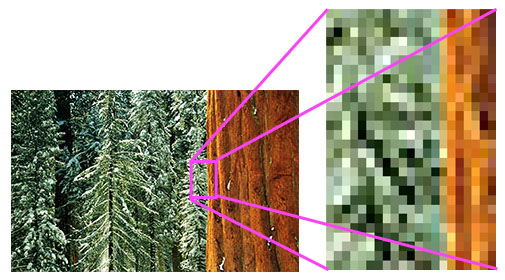
There are several ways to generate and store images in the computer. The first that we will consider are methods that identify and store the color of each pixel independently of those pixels around it. These types of images are often referred to as "bitmaps."
Pixels Must Store Color Information
Each pixel in a bitmap image must hold one important piece of information: its color. To store color, the computer uses numbers. The challenge is determining which numbers and how many of them to use — a decision that has evolved significantly over time.
In computer science, these numbers follow a color model. While artists often learn color using RBY (red, blue, yellow), computers use light rather than pigment. This means they rely on a different system — the RGB model.
The RGB Color Model
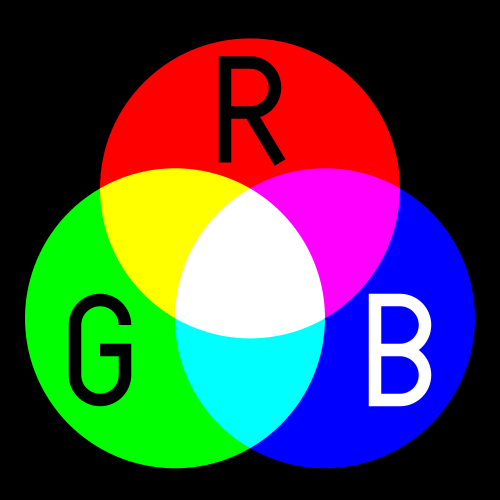
Computers use three primary colors of light: red, green, and blue. By combining different intensities of these colors, the computer can create any color you see on the screen. This process is known as additive color mixing.
Each RGB color is represented using three numbers:
- Red intensity
- Green intensity
- Blue intensity
Some basic examples:
- Red: (255, 0, 0)
- Green: (0, 255, 0)
- Blue: (0, 0, 255)
- White: (255, 255, 255)
- Black: (0, 0, 0)
A Brief History of Digital Color
Early Computers: Only 8 Colors
Early personal computers with color monitors stored color using only one bit each for red, green, and blue — producing just eight possible colors. This included black, white, red, green, blue, cyan, magenta, and yellow. This simple system worked for basic graphics but was far too limited for realistic images.

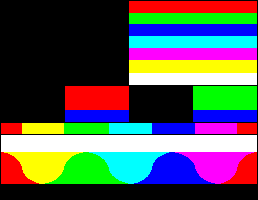
Later: 256‑Color (8‑Bit) Images
As technology improved, computers transitioned to 8‑bit color, allowing up to 256 colors. These images used a color palette (also called a lookup table), and each pixel stored a number pointing to one of the 256 predefined colors. This format was widely used in early GIF images and PC graphics. It offered more flexibility but still couldn’t capture smooth gradients or natural photos.

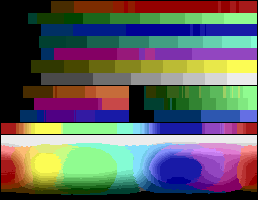
Modern 24‑Bit Color
Today’s computers, phones, and displays use 24‑bit true color, sometimes called RGB888. This means:
- 8 bits for red
- 8 bits for green
- 8 bits for blue
With 8 bits (or 1 byte) allocated to each color channel, each pixel requires three bytes of storage.
This gives us an impressive: 2²⁴ = 16,777,216 possible colors.
That’s enough to display smooth gradients, detailed photographs, and highly realistic images — which is why 24‑bit color has become the industry standard.

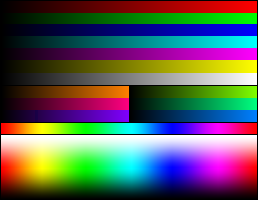
If you remember elementary art class, you were likely taught that the primary colors are Red, Yellow, and Blue. You also learned that mixing all those paints together creates a dark, muddy brown. That is because paint is subtractive color—it works by absorbing (subtracting) light.
Computers use additive color. Because a screen starts as a black void, it creates color by adding light. In this digital system:
- Red + Green = Yellow
- Red + Blue = Magenta
- Green + Blue = Cyan
- Red + Green + Blue = Pure White
In the digital world, white is the "loudest" color (all lights at full blast), and black is the "quietest" (all lights off).

How Much Space Does 24‑Bit Color Use?
To calculate the uncompressed size of a 24-bit bitmap image, you need three pieces of information: the width in pixels, the height in pixels, and the number of bytes per pixel. For 24-bit color, each pixel always requires exactly 3 bytes — one for each color channel.
The formula is straightforward:
Size (bytes) = Width × Height × 3
Worked Example
How large is an uncompressed 24-bit image that is 800 pixels wide and 600 pixels tall?
| Step | What we are calculating | Result |
|---|---|---|
| 1 | Count the total pixels: 800 × 600 | 480,000 pixels |
| 2 | Multiply by bytes per pixel: 480,000 × 3 | 1,440,000 bytes |
| 3 | Convert to kilobytes: 1,440,000 ÷ 1,024 | ≈ 1,406 KB |
Check: 800 × 600 × 3 = 1,440,000 bytes ≈ 1,406 KB ✓
Now You Try
A school photographer takes a headshot that is 1,200 pixels wide and 1,600 pixels tall. How large is the uncompressed 24-bit file in bytes? In kilobytes?
Show answer
| Step | What we are calculating | Result |
|---|---|---|
| 1 | Count the total pixels: 1,200 × 1,600 | 1,920,000 pixels |
| 2 | Multiply by bytes per pixel: 1,920,000 × 3 | 5,760,000 bytes |
| 3 | Convert to kilobytes: 5,760,000 ÷ 1,024 | ≈ 5,625 KB |
Check: 1,200 × 1,600 × 3 = 5,760,000 bytes ≈ 5,625 KB ✓
Images grow large quickly — this is exactly why formats like JPEG and PNG apply compression before saving. A raw 24-bit image of a typical phone photo would often exceed 10 MB uncompressed.
Summary
You now know how computers store and display color:
- Images are grids of tiny colored squares called pixels.
- Each pixel stores its RGB color using numbers.
- Modern displays use 24‑bit color (three bytes per pixel).
- More bits → more possible colors → more realistic images.