What Mass Storage Has to Do
In Topic 2b you learned about the memory hierarchy: registers inside the CPU, RAM as the computer's working memory, and secondary storage as the place programs and files live long-term. Now it is time to look more carefully at that third layer — mass storage — and understand how it actually works.
Mass storage has one job that RAM cannot do: keep data permanently, even when the power is off. Everything else — your documents, your photos, your applications, your operating system — lives in mass storage until the computer needs it. The tradeoff for that permanence is speed: mass storage is significantly slower than RAM.
There are three broad classes of mass storage in use today, each built on a different physical principle: magnetic storage, optical storage, and flash storage. By the end of this reading you will understand how each works, what it is good at, and where it falls short.
Magnetic Storage — The Hard Disk Drive
Hard disk drives (HDDs) are one of the oldest forms of mass storage still in widespread use. The basic principle has not changed since the 1950s: data is stored as magnetic patterns on a spinning surface, and a moving arm reads and writes those patterns.
How an HDD Works
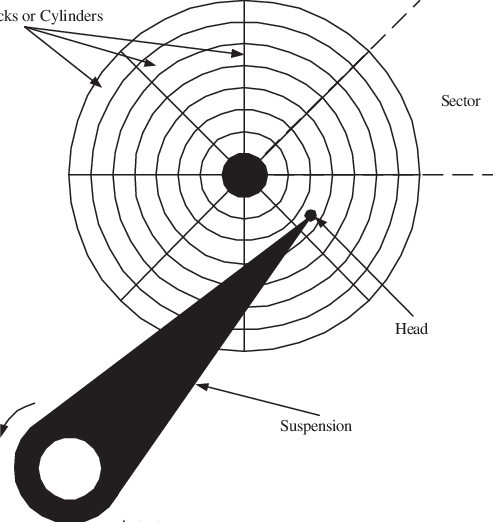
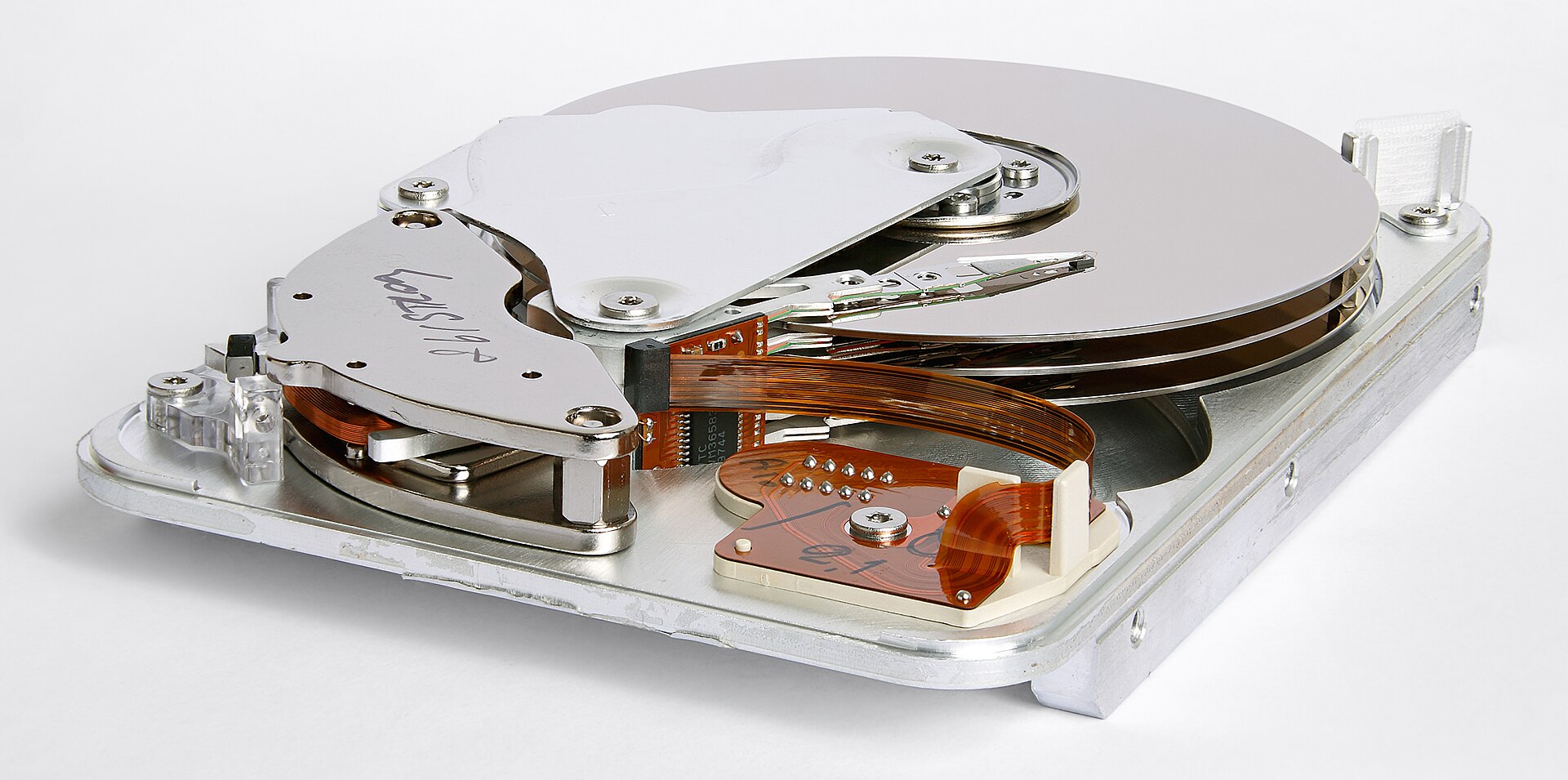
Inside an HDD are one or more spinning disks called platters, coated with a magnetic material. Tiny regions on each platter can be magnetized in one direction or another, representing 0s and 1s. A read/write head attached to a moving arm hovers just above the platter surface — close enough to read the magnetic patterns, but never quite touching.
Retrieving data requires two physical movements: the arm must swing to the correct circular path on the platter (called a track), and then the platter must rotate until the right section of that track is under the head. Both movements take time — milliseconds rather than the nanoseconds RAM operates in. This mechanical delay is the fundamental reason HDDs are slower than other storage types.
How HDDs Fail
Because an HDD has moving parts, it fails in predictable mechanical ways. The read/write head can crash into the platter if the drive is bumped or dropped while spinning — this is called a head crash, and it can destroy data permanently. Motors and bearings wear out over time. These mechanical failures tend to come with warning signs: unusual clicking or grinding sounds, increasing errors, or slow response times. Monitoring tools can often detect a failing HDD before it dies completely, giving users time to back up their data.
The mechanical nature of HDD failure is important to understand because it shapes when and where HDDs are the right choice — and when they are not.
Where HDDs Shine
Despite their age and slowness, HDDs remain the dominant choice for bulk storage at scale. A 4TB HDD costs a fraction of what a 4TB SSD would. For archiving large amounts of data that does not need to be accessed quickly — video archives, backups, historical records — HDDs offer a cost-per-gigabyte that no other technology currently matches.
Optical Storage — CDs, DVDs, and Blu-ray
Optical storage uses a fundamentally different approach: instead of magnetizing a surface, it encodes data as a physical pattern of microscopic features on a disc, and reads that pattern using a laser.
How Optical Storage Works
The surface of a CD, DVD, or Blu-ray disc contains a spiral track running from the center outward. Along that track are tiny pits (small indentations) and lands (flat areas between pits). A laser beam shines on the spinning disc; the way the laser reflects back differs depending on whether it hits a pit or a land. The drive interprets these reflection patterns as 0s and 1s.
Writing to a recordable disc (CD-R, DVD-R, Blu-ray-R) uses a more powerful laser to permanently alter the disc surface, creating the pit-and-land pattern. Once written, these marks cannot be changed — which is actually an advantage in some contexts, as it means the data cannot be accidentally overwritten.
The Difference Between CD, DVD, and Blu-ray
The three generations of optical media differ primarily in how tightly the spiral track is packed and what color laser is used to read it:
- CD — uses a red laser; holds roughly 700 MB. Once the standard for music and software distribution.
- DVD — uses a shorter-wavelength red laser that can read a more tightly packed track; holds 4.7 GB on a single layer. The standard for video and software through the 2000s and 2010s.
- Blu-ray — uses a blue-violet laser (hence the name) with an even shorter wavelength, allowing much finer detail; holds 25 GB per layer. The current standard for high-definition video distribution.
The shorter the laser wavelength, the smaller the features it can read, and the more data that fits on the same physical disc.
How Optical Storage Fails
Optical discs fail in ways very different from HDDs. Because the data is physically encoded in the disc surface, discs are vulnerable to scratches that disrupt the laser's ability to read the track. They are also susceptible to disc rot — a gradual chemical degradation of the disc's reflective layer over decades. Pressed commercial discs (like a store-bought DVD) are generally stable for many decades under good conditions. Recordable discs (CD-R, DVD-R) tend to be less durable and more sensitive to heat, humidity, and light.
Where Optical Storage Fits
Optical media is ideal for distributing fixed content — a movie, a software package, a curriculum resource — because copies are cheap to produce and the data cannot be accidentally modified. It also requires no network connection to share, which matters in schools or communities with limited connectivity. For long-term archival of content that will truly never need to change, pressed Blu-ray discs remain one of the most stable physical storage formats available.
Flash Storage — SSDs, USB Drives, and Memory Cards
Flash storage stores data as electrical charges trapped in microscopic cells made of silicon. There are no moving parts, no spinning platters, no lasers. Data is accessed electronically, which is why flash storage is dramatically faster than either magnetic or optical storage.
How Flash Storage Works
Each cell in flash memory can hold an electrical charge or not, representing a 1 or a 0. Cells are organized into pages (the smallest unit that can be read or written) and blocks (groups of pages that must be erased together before new data can be written). This organization is invisible to the user but explains some of flash storage's quirks — for example, why deleting a file does not immediately free space for new data.
Flash storage appears in several forms: solid-state drives (SSDs) serve as the primary storage in laptops, desktops, and phones; USB flash drives provide portable file transfer; SD cards and similar formats expand storage in cameras, tablets, and other devices. All of these use the same underlying technology.
How Flash Storage Fails
This is where flash storage surprises many people: SSDs do fail, but for a completely different reason than HDDs. Each cell in flash memory can only be erased and rewritten a limited number of times — typically somewhere between a few thousand and a few hundred thousand cycles depending on the type. After enough write cycles, cells begin to wear out and can no longer reliably hold a charge.
To understand why flash storage wears out consider the analogy of using one post it note to store your daily attendance. Each new day you erase what was there before and write down today's information. After a while that paper just can't handle being erased and rewritten anymore.
This is called write endurance or write lifetime. Modern SSDs include sophisticated management software that spreads writes evenly across all cells (called wear leveling) to extend the drive's life. For most users doing ordinary tasks, an SSD will last many years before wear becomes an issue. But in high-write environments — database servers, systems constantly recording video — write endurance becomes a real engineering concern.
A key difference in how they fail: HDDs tend to fail mechanically and often give warning signs — strange sounds, increasing errors — before they die completely. SSDs tend to fail more suddenly and silently as cells reach their write limit. Neither type is immune to failure, which is why backups matter regardless of which storage technology you use.
Where Flash Storage Shines
Flash storage is the right choice when speed, durability, and size matter more than cost per gigabyte. It is why laptops start up in seconds rather than minutes, why smartphones feel responsive, and why portable drives survive being dropped in a bag. The absence of moving parts means no mechanical shock vulnerability and no warm-up time — data is available the instant the device is powered.
Comparing the Three Classes
Each class of mass storage has a different physical foundation, different performance characteristics, and a different failure profile. The table below summarizes the key contrasts.
| Storage Type | Physical Basis | Speed | Cost per GB | How It Fails |
|---|---|---|---|---|
| HDD | Magnetic platters, moving head | Slowest | Lowest | Mechanical wear, head crash |
| Optical | Laser-read pits and lands | Slow | Very low (per disc) | Scratches, disc rot |
| Flash (SSD) | Electrical charges in silicon cells | Fastest | Higher | Cell write-cycle exhaustion |
In the next reading, we will use these differences to ask a more interesting question: if SSDs are faster and more durable than HDDs, why do HDDs still exist? The answer reveals something important about how technology decisions are actually made.